
Installation
Install Patronus and verify that it is running correctly.
Patronus Desktop protects supported AI traffic on macOS and Windows. First launch guides you through the required operating-system approvals.
Requirements
Section titled “Requirements”- macOS or Windows with permission to install local system components.
- The Patronus installer for your operating system.
- Network access during first setup.
- Admin approval when the operating system asks for it.
Install on macOS
Section titled “Install on macOS”- Download the macOS DMG from the Patronus download page.
- Open the DMG and move
Patronus Desktop.appinto/Applications. - Start
Patronus Desktop.app. - Follow the setup screen in Patronus.
- Approve the macOS prompts shown during setup.
- Start protection from Patronus Desktop.
If macOS asks for Network Extension approval, approve Patronus in System Settings and return to Patronus Desktop.
Install on Windows
Section titled “Install on Windows”- Download the Windows installer from the Patronus download page.
- Run the installer and approve the Windows elevation prompt.
- Complete the installer. If Windows needs an additional Microsoft WebView component, the installer will guide you through it.
- Start Patronus Desktop from the Start Menu.
- Follow the setup screen in Patronus.
- Start protection from Patronus Desktop.
If Windows requires additional security approval, complete the prompt and return to Patronus Desktop.
Onboarding
Section titled “Onboarding”On first launch, onboarding checks local protection components, repairs missing pieces, and requests required operating-system approvals.
macOS onboarding
Section titled “macOS onboarding”On macOS, onboarding covers:
- Installing or updating the privileged helper.
- Generating the local
mitmproxycertificate authority if it does not exist yet. - Trusting the
mitmproxyCA in the system trust store. - Configuring runtime CA environment values for supported CLI and SDK runtimes.
- Asking macOS to approve the Patronus Network Extension and proxy configuration.
- Starting protection after the approvals are complete.
If any step is missing later, Patronus shows a repair state and reruns the relevant onboarding action.
Windows onboarding
Section titled “Windows onboarding”On Windows, onboarding covers:
- Installing or updating the Patronus helper service.
- Generating the local
mitmproxycertificate authority if it does not exist yet. - Trusting the
mitmproxyCA in the Windows trusted root store. - Configuring runtime CA environment values for supported CLI and SDK runtimes.
- Preparing the Windows traffic capture path used by Patronus.
- Starting protection after the required approvals are complete.
If Windows asks for elevation or security approval, complete the prompt and return to Patronus Desktop.
Approve The Network Extension (macOS)
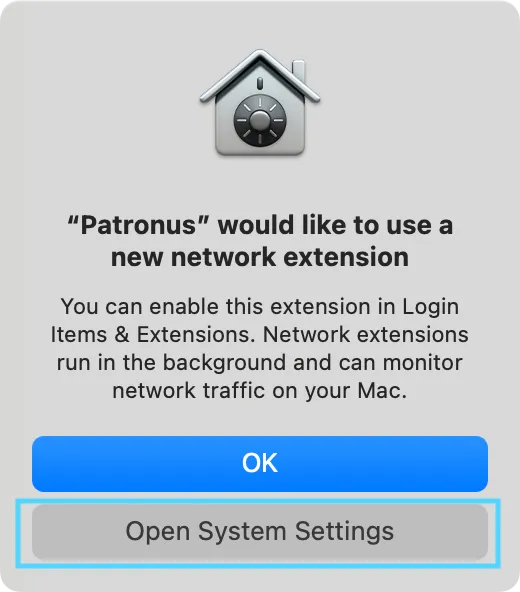
Section titled “Approve The Network Extension (macOS)”Patronus uses a Network Extension to observe AI traffic on macOS. On first start, macOS asks you to allow it:
1. Open System Settings → Network → Filters
Section titled “1. Open System Settings → Network → Filters”When Patronus prompts you, open System Settings. Patronus appears in Network → Filters as a pending content filter.
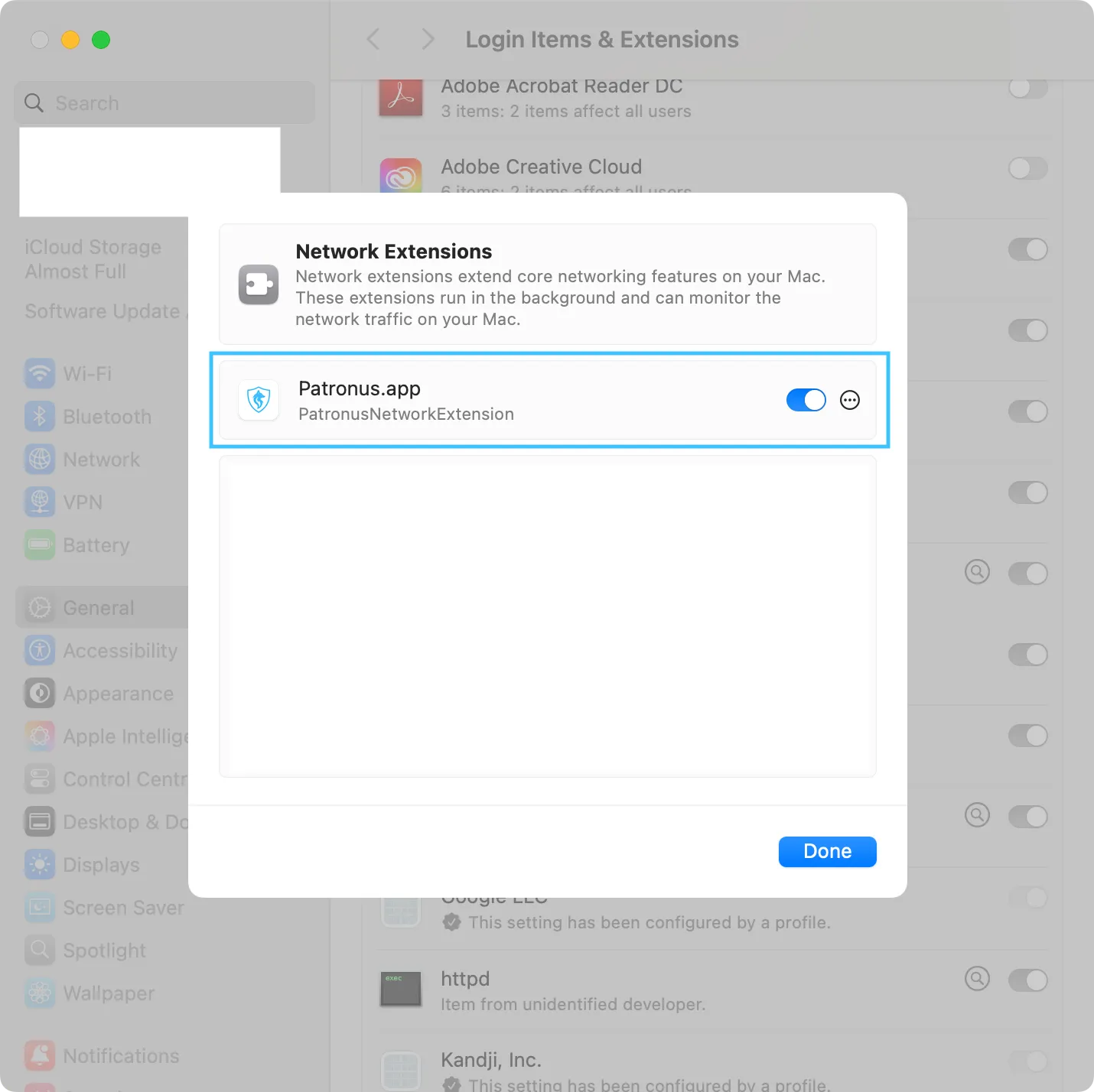
2. Allow proxy changes
Section titled “2. Allow proxy changes”macOS asks you to allow Patronus to add a proxy configuration. Approve the prompt with Touch ID or your password.
3. Confirm the extension
Section titled “3. Confirm the extension”Confirm that the Patronus filter is listed and enabled. Return to Patronus Desktop and continue.
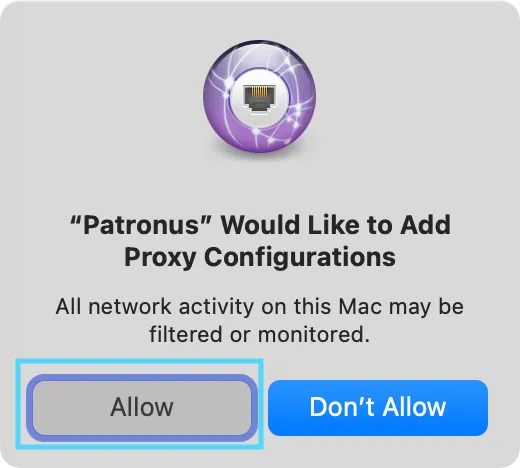
If macOS does not show a prompt, open System Settings → Network → Filters manually and enable Patronus there.
Trust the local certificate authority
Section titled “Trust the local certificate authority”Patronus uses a local certificate authority (CA) to inspect supported HTTPS traffic. The client must trust that CA before Patronus can analyze the encrypted content.
- During setup, Patronus installs the CA into the system trust store through its privileged helper.
- On macOS you can verify it by opening Keychain Access → System and looking for a
mitmproxycertificate marked as trusted. - On Windows the CA lives under Certificate Manager → Trusted Root Certification Authorities.
- The active capture and inspection settings determine which connections Patronus inspects. Certificate trust alone does not determine that scope.
If the CA is missing or marked as untrusted, re-run the setup step from Patronus Desktop. Patronus will reinstall the CA through the privileged helper rather than asking you to handle certificates manually.
Restart shells and terminal sessions
Section titled “Restart shells and terminal sessions”After protection starts for the first time, open new terminal sessions before running CLI tools that access AI services. Tools that read proxy or certificate settings only at startup otherwise retain the previous configuration.
This typically affects:
nodeand JavaScript runtimes (npm, yarn, pnpm scripts that hit AI APIs).python,pip, anduv-based clients (OpenAI SDK, Anthropic SDK, LangChain).gitwhen configured to talk to AI-assisted code review services.dockeranddocker composewhen builds or containers reach out to AI hosts.- Long-running editors and IDE terminals. Restart the client process as well if a new terminal still inherits the old settings.
If a CLI keeps connecting without going through Patronus, restart the terminal and client, then check runtime CA support.
What Gets Installed
Section titled “What Gets Installed”A standard installation includes these local components. See Privacy and retention for their data paths:
- The Patronus Desktop application in the installation location for your operating system.
- A privileged helper used to configure the system proxy, install the local CA, and start the macOS Network Extension.
- A local certificate authority added to the system trust store so encrypted AI traffic can be inspected.
- Local configuration and storage in the per-user data directory for preferences, policies, and runtime evidence.
- Local security models used by the on-device analysis available to your installation. Setup and repair prepare the required runtime components.
The desktop installation does not require a browser addon.
Verify protection
Section titled “Verify protection”After setup:
- Open Patronus from the tray.
- Confirm Patronus shows protection as running.
- Send a simple request through a supported AI app, CLI, SDK, or local model endpoint.
- Open Traces and check that the request appears. Review its audits and policy decisions to confirm what was analyzed and how it was handled.
Update and repair
Section titled “Update and repair”Patronus may show one of these visible update or recovery states:
- Update available means a new Patronus version can be installed.
- Repair required means Patronus needs to restore a local component before protection can start.
- Restart required means the operating system or Patronus needs a restart before protection continues.
Follow the action shown in Patronus Desktop. If protection still does not start, restart Patronus and retry.
Uninstall
Section titled “Uninstall”Use the standard uninstall flow for your operating system:
- On macOS, use the Patronus uninstaller if one is included with your installation package.
- On Windows, uninstall Patronus from Windows Settings or the Start Menu entry provided by the installer.
The uninstaller removes the local proxy state, trusted mitmproxy CA entries, runtime CA environment values, helper services, and Patronus runtime files. If uninstall is interrupted or a local test leaves proxy or CA state behind, use the commands in Uninstall And Manual Cleanup.
After uninstalling, restart the device if the operating system asks for it.